
Instead of manually copying every spice purchase into a stock sheet, connect each order line to a matching inventory item so quantities update when the delivery arrives. For repeat buying, use the green cardamom for cafés sourcing guide to define the product details your system must preserve in 2026.
- To connect spice orders to café inventory system in 2026, map each order line to one inventory item.
- Use Muzri spice orders as purchase records; increase available stock only after the delivery is received.
- Keep green cardamom, black cardamom, Malabar black pepper and turmeric powder as separate inventory items.
- Manual entry suits occasional orders; CSV import or purchase-order receiving suits repeat café buying.
Why this matters
A purchase order, delivery and inventory item represent different events. Combining them causes false stock counts: ordered stock appears available before it reaches the kitchen, or received stock remains missing because nobody completed the final entry.
Muzri is best for cafés and hotel kitchens buying its Kerala spices online and recording each order in an existing inventory system. This guide does not assume that Muzri or your inventory platform provides a direct application programming interface, webhook or ready-made connector. It uses a purchase-order workflow that works through manual entry, spreadsheet import or your platform's receiving module.
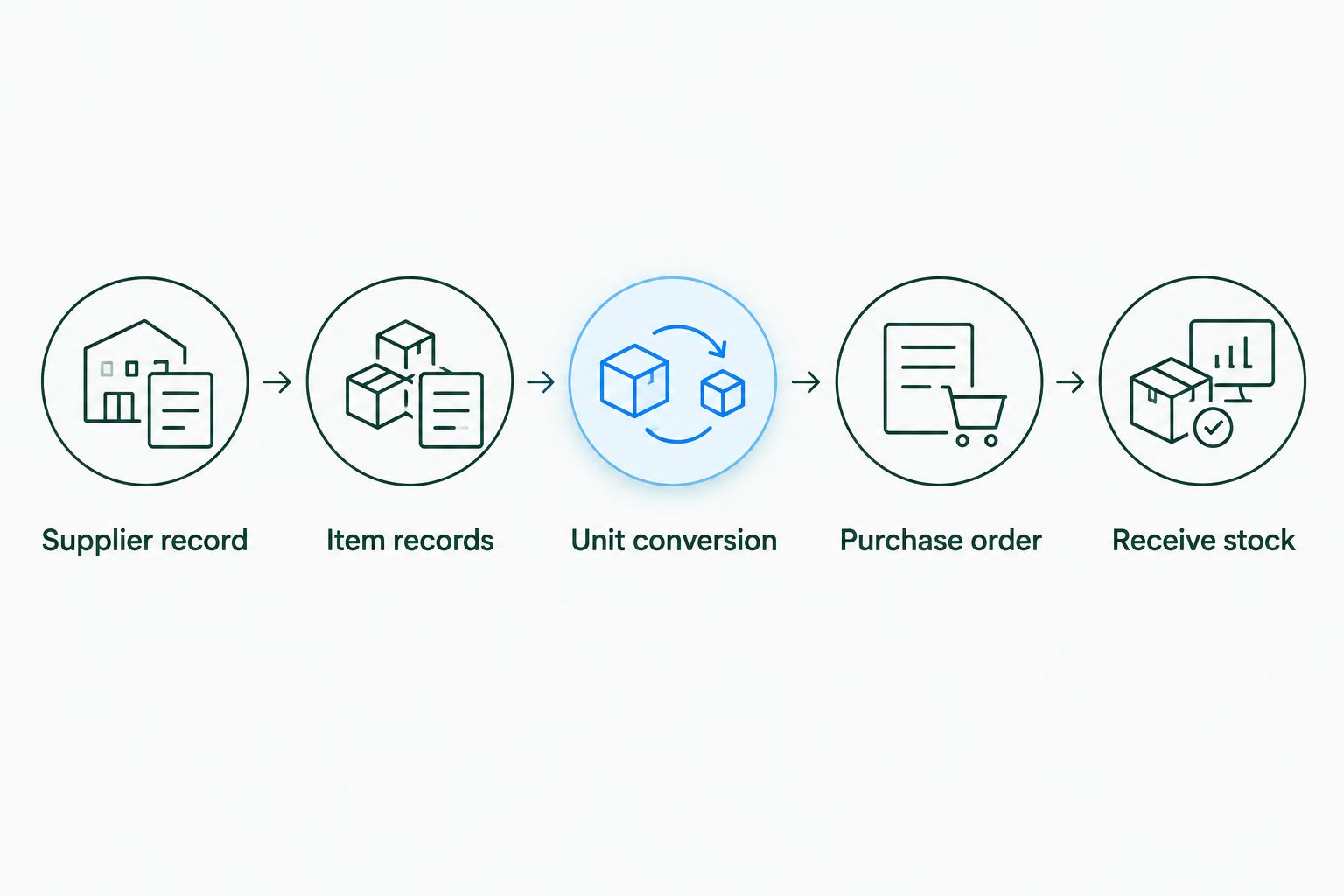
In 2026, the central rule is simple: an order records what you expect; a goods receipt records what you can use. Keep those records separate, even when one employee places the order and receives the delivery.
The workflow also preserves product identity. Green cardamom and black cardamom cannot share one generic cardamom item, while Malabar black pepper and turmeric powder need their own units, recipe mappings and reorder rules.
Before you start
- Get administrator or purchasing access to the café inventory system. You need permission to create suppliers, items, purchase orders, units and reorder rules.
- Collect the Muzri order confirmations you plan to enter, plus the receiving records used when deliveries reach the café. Use only product, quantity and reference details shown in those records.
- Choose one base stock unit for each item. If the order uses kilograms but the kitchen counts grams, configure the conversion before importing old orders: 1 kilogram equals 1,000 grams.
- Check whether your platform increases stock at Order, Approve or Receive. The non-obvious failure is updating on order approval, which makes stock available before it has physically arrived.
Interface wording differs between inventory platforms. The labels below use common inventory concepts such as Suppliers, Items, Purchase Orders, Receive and Reorder Point; choose the exact equivalent shown in your system rather than creating unsupported custom fields.
Supplier and item records
- Open Suppliers and create the supplier record for Muzri. Use the same supplier name on every new purchase order so reports do not split one source across duplicate records.
- Open Items and create distinct records for green cardamom, black cardamom, Malabar black pepper and turmeric powder. Do not combine whole spices and powders under a shared item.
- Enter only attributes supported by the order record or product documentation. If grade, origin, certification or pack details are not shown, leave those fields empty rather than filling them from memory.
- Set the Purchase Unit to the unit used for ordering and the Stock Unit to the unit used in the kitchen. Add a verified unit conversion when those units differ.
- Assign a unique internal SKU to every item and pack configuration. A clear structure can combine the spice name, form and documented grade without inventing a product name.
- Save each item, then create a test purchase line. Confirm that 1 kilogram ordered becomes 1,000 grams of received stock when grams are the base unit.
Expected result: the supplier is available once, every spice has a distinct item record, and unit conversion produces the correct received quantity.
Product inspection belongs beside inventory setup because the system should describe what the kitchen actually receives. The guide to identifying good-quality green cardamom provides visual checks without turning colour or pod size into unsupported inventory fields.
Purchase-order configuration
- Open Purchase Orders and select the supplier record created above.
- Enter the order date and the reference from the source order. Preserve that reference so finance, purchasing and kitchen staff can match the same transaction.
- Add one line for each ordered spice. Select the existing item instead of typing a new description that creates a duplicate record.
- Enter the ordered quantity and purchase unit exactly as shown in the order. Let the configured conversion calculate the base stock quantity.
- Add taxes, charges or accounting codes only when your inventory platform requires them and the source document supports them. This article does not state prices because current order values belong in the transaction record, not a permanent guide.
- Save the purchase order as Draft, Open or the equivalent status that does not increase available stock.
- Attach the original order record if your platform supports attachments. Otherwise, store the reference in a searchable field.
Expected result: the system shows an open order with the correct supplier, items, units and expected quantities, while on-hand inventory remains unchanged.
For occasional purchases, complete these steps manually. For recurring café orders, build a spreadsheet template with stable columns such as supplier, order reference, order date, item SKU, ordered quantity and purchase unit. Export requirements differ by platform, so download its current import template in 2026 instead of reusing an older column layout.
Delivery receiving
- Open the matching purchase order when the delivery reaches the café. Do not create a second order solely to receive the stock.
- Compare each delivered spice with the order line. Check the product identity, pack condition, labelled quantity and any documented grade before updating inventory.
- Select Receive, Goods Receipt or your system's equivalent action.
- Enter the quantity physically received, not the quantity originally ordered. If 250 grams arrives against a hypothetical 500-gram order, receive 250 grams and leave the balance open only when it is still expected.
- Record damaged, missing or rejected quantities in the platform's discrepancy field when one exists. Do not add rejected goods to usable stock.
- Save the receipt and confirm that the item ledger shows the converted base quantity at the correct café or storeroom location.
- Close the purchase order only when every line has been received, cancelled or otherwise resolved.
Expected result: available inventory increases by the accepted quantity, the open-order balance reflects anything outstanding, and the original order reference remains attached to the movement.
Whole pods and powders should remain separate throughout receiving and storage. The explanation of whether cardamom pods stay fresher than cardamom powder shows why form belongs in the item name and recipe mapping rather than in an informal note.
Choose the right connection method
The best method depends on order frequency, line count and the features already available in your café inventory system.
| Method | Best for | How it works | Pros | Cons |
|---|---|---|---|---|
| Manual purchase order | Occasional spice orders | Staff enter each order line and receive it later | Easy to review; no import setup | Repetitive entry; duplicate-item risk |
| CSV import | Repeat orders with consistent item SKUs | A spreadsheet creates open purchase orders in bulk | Faster for multiple lines; reusable mapping | Column or unit errors can affect many rows |
| Purchase-order integration | Systems with a documented connector or API | Approved order data creates a purchase record automatically | Less copying; consistent references | Requires supported credentials, field mapping and maintenance |
Use manual entry until item names and unit conversions are stable. Automation reproduces the mapping you give it; it does not correct a weak SKU structure.
For 2026 setup, run one test order before importing historical purchases. Confirm the supplier, location, item, ordered unit, received unit and status all behave correctly. Then apply the same mapping to later orders.
Update stock when an order changes
A nearby workflow is needed when an order is edited, partly received or cancelled after creation. Treat the purchase order as the expected quantity and the goods receipt as the accepted quantity.
- Open the original purchase order using its order reference.
- Change the open ordered quantity only when the source order has also changed. Add a note explaining the revision.
- If part of the order has already arrived, leave the completed goods receipt unchanged. Adjust only the unreceived balance.
- For a cancelled line, set the remaining quantity to cancelled or closed using the platform's supported status. Do not receive a zero-value placeholder item.
- If excess stock arrives and the café accepts it, record the actual received quantity and retain the discrepancy note.
- Recheck the item ledger after saving. Received stock should remain available, while cancelled or outstanding quantities should not appear on hand.
Expected result: order changes affect expected stock without rewriting completed receipts or distorting the quantity already in the storeroom.
Troubleshooting
The import creates duplicate spices
The import is matching descriptions instead of unique SKUs. Map the source item identifier to the existing Item SKU field, remove the duplicate records, and rerun a single test line before importing the full file.
One kilogram appears as one gram
The purchase unit and stock unit are mapped without a conversion. Set the verified relationship of 1 kilogram to 1,000 grams, then reverse the incorrect receipt and enter it again according to your platform's audit rules.
Stock increases when the order is approved
The order status is configured to post inventory immediately. Change the workflow so Approve records the commitment and Receive records usable stock. Reverse any premature stock movement before receiving the delivery.
A partial delivery closes the order
The receiving action is treating the entered amount as the final quantity. Use Partial Receipt, Keep Open or the exact equivalent available in your platform. If no such setting exists, document the balance and follow the platform provider's supported process.
The café and finance totals do not match
Inventory quantities and accounting values are different controls. Compare the order reference, item lines, received quantities and rejected goods first; then reconcile taxes or charges inside the accounting record without changing physical stock.
Customize your workflow
Once the basic connection works, add controls that reflect how the kitchen uses each spice in 2026:
- Map each inventory item to the recipes that consume it. Keep the recipe unit compatible with the item's base stock unit.
- Create separate storage locations when a café counter, central kitchen and hotel storeroom hold independent stock. Receive goods into the location that physically accepted them.
- Add documented batch or lot details only when the delivery record supplies them and the inventory platform can preserve them.
- Set a Reorder Point from your own recorded usage and replenishment history. Do not copy a generic threshold from another café with different recipes and service volume.
- Review exception reports for open orders, negative stock, unit-conversion errors and receipts without order references.
- Restrict supplier and item editing to authorised users while allowing kitchen staff to record receipts and counts.
Review current spice options
Check Muzri for current Kerala spice options before creating new café inventory items.
FAQ
What is the best way to connect spice orders to a café inventory system?
Create a supplier record, map every ordered spice to a unique item SKU, create an open purchase order and increase stock only when the delivery is received. Manual entry is the safest starting method before CSV or API automation.
Do I need an API to connect Muzri orders to inventory?
No, an API is not required for the purchase-order workflow in this guide. You can enter orders manually or use your inventory platform's supported spreadsheet import without assuming a direct connector exists.
Which fields should a spice-order import include?
Include supplier, order reference, order date, item SKU, ordered quantity and purchase unit. Add location, documented grade or batch fields only when the source record and inventory platform support them.
When should ordered spices increase café stock?
Ordered spices should increase available stock when the café receives and accepts them, not when the order is placed. This keeps expected quantities separate from usable inventory.
How should I record a partial spice delivery?
Receive only the quantity physically accepted and leave the remaining purchase-order balance open when it is still expected. Cancel or close any balance that will not arrive.
Should green and black cardamom use the same inventory item?
No, green cardamom and black cardamom should use separate inventory items. Their product identity and kitchen use differ, so combining them would make stock and recipe records unreliable.
How do I convert kilograms to grams in inventory software?
Configure 1 kilogram as 1,000 grams when grams are the base stock unit. Test the conversion on one purchase line before importing more orders.
How often should reorder settings be reviewed in 2026?
Review reorder settings whenever menu usage, storage location or replenishment patterns change. Use the café's recorded consumption and delivery history rather than an unsupported universal threshold.
One last thing
Do not automate the order import before testing the receiving event. A perfect purchase-order import still produces a false inventory count if approval adds stock too early or a partial delivery closes the entire order.
For a dependable 2026 workflow, test one item from order creation through physical receipt, unit conversion and recipe deduction. Then expand the same verified mapping across the remaining spice items.